
Example source dimensions
Ecommerce workflow
Create clean product cutouts.
Remove a distracting scene from a product photo and export a transparent PNG that is easier to reuse across listings, ads, and design layouts.
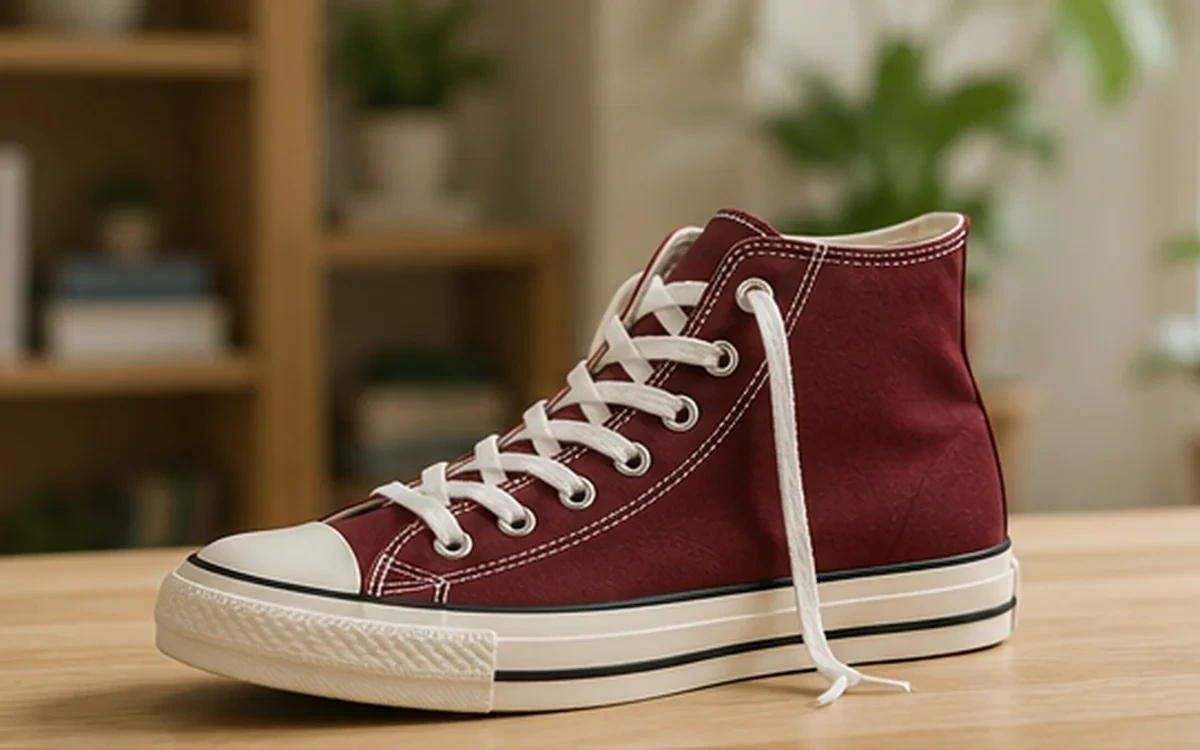
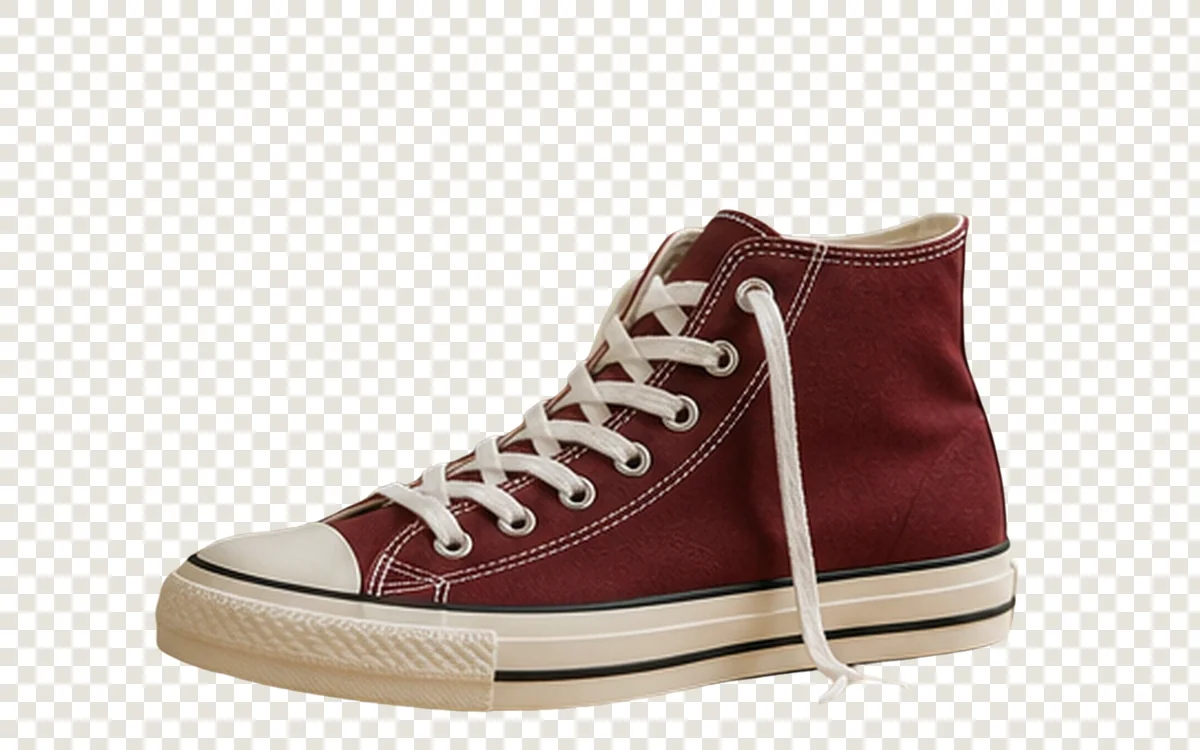
Example result dimensions
Workflow
- 1Upload a clear product image with the entire item visible.
- 2Choose Product subject when the automatic result needs a more specific route.
- 3Review the outer contour, holes, shadows, and transparent areas at full size.
- 4Download the transparent PNG and place it on the final brand background.
Continue with the result in another ImageAI tool when another step is needed.
FAQ
Common questions for this workflow
Does this replace marketplace image requirements?
No. Export the cutout first, then place it on the background, canvas size, and margins required by the marketplace.
Should natural shadows be kept?
Keep or recreate a shadow only when it helps the product look grounded and does not misrepresent the item.
What if a lace or thin edge disappears?
Try a clearer source image or another subject mode, then inspect the result before publishing.
ImageAI
Open ImageAIVerify the workflow with your own image.
Sign in to process your image, keep history across devices, and manage credits.