
Example source dimensions
Product-photo workflow
Improve your product photos.
Use targeted enhancement to improve visibility and consistency without changing the product facts customers rely on.
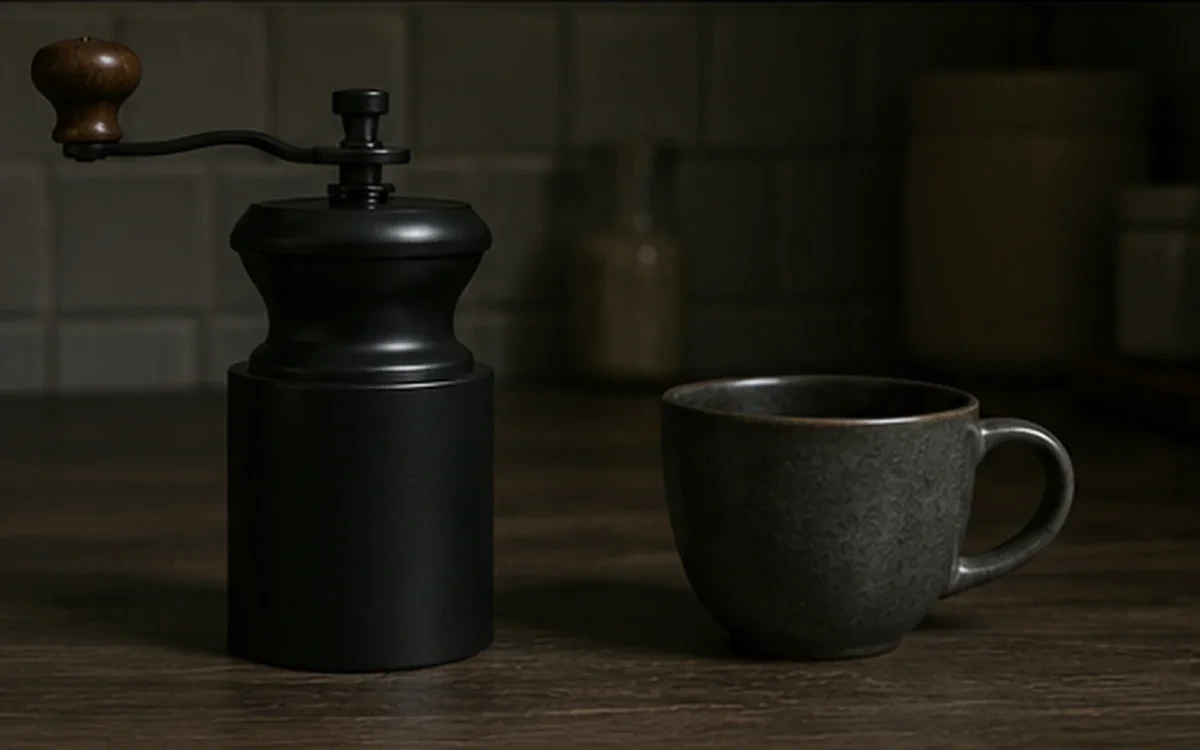
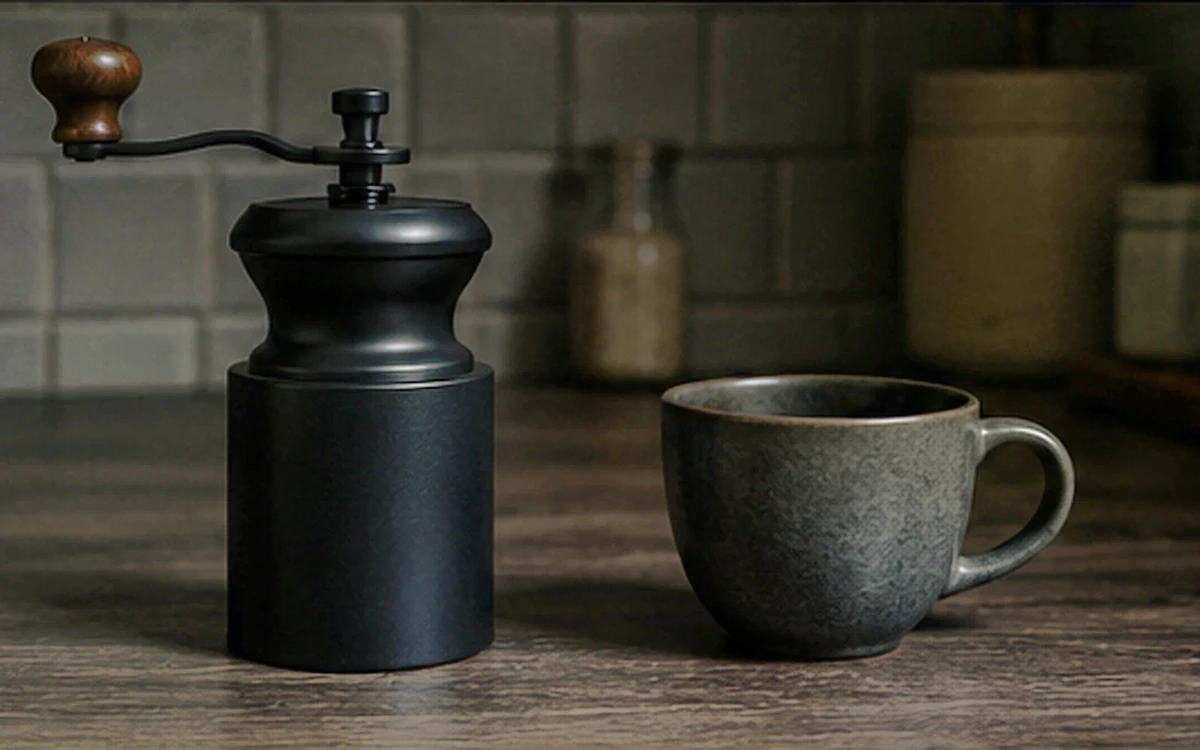
Example result dimensions
Workflow
- 1Upload the original product photo and keep it available for comparison.
- 2Start with Automatic or Tone & contrast instead of applying every mode.
- 3Compare color, material texture, labels, and reflections with the source.
- 4Export only after the image still represents the real product.
Continue with the result in another ImageAI tool when another step is needed.
FAQ
Common questions for this workflow
Can enhancement make a product look different?
Yes. Strong enhancement can change texture, color, or local detail, so compare the result with the source.
Which mode should I try first?
Automatic is the safest starting point. Use Tone for dark images and Color only for a clear color imbalance.
Should all catalog images use the same setting?
Use a consistent workflow, but review each source because lighting and product materials differ.
ImageAI
Open ImageAIVerify the workflow with your own image.
Sign in to process your image, keep history across devices, and manage credits.